UGent VPN from Ubuntu with open source software
- Merlijn Sebrechts
- Linux , University
- October 24, 2026
Table of Contents
Ghent University uses Cisco AnyConnect VPN and recommends the proprietary “Cisco Secure Client”. While I’m happy there is an actual supported option for Linux users, I’d rather not have more proprietary software on my machine, so I looked for alternative ways to connect.
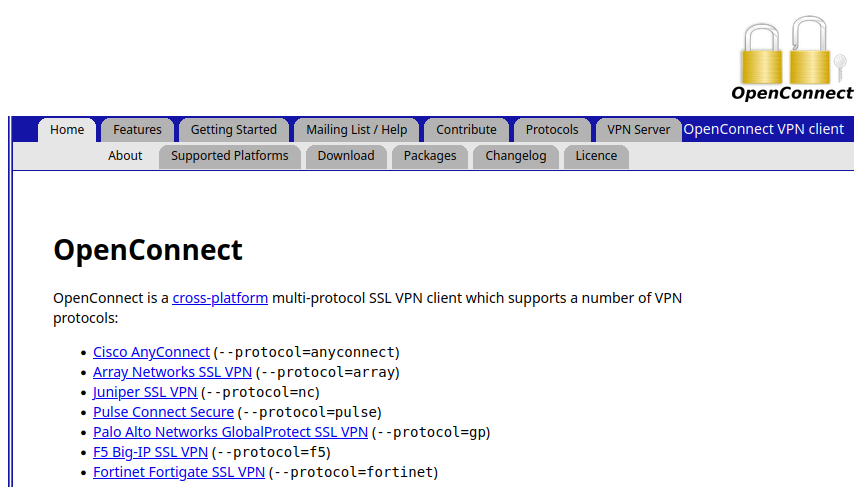
OpenConnect is an open source project that implements many VPN protocols, including Cisco AnyConnect. Despite its vintage website, it’s still well-maintained and supports the latest protocols.
Via OpenConnect CLI
The good news is that you don’t need openconnect-sso anymore. Older guides might tell you to pip-install the openconnect-sso helper. However, the current openconnect app handles single sign-on itself.
First install openconnect using the following command.
sudo apt install openconnect
Then connect with these two commands.
output=$(openconnect --useragent=AnyConnect --authenticate vpn.ugent.be)

COOKIE=$(echo "$output" | grep '^COOKIE=' | cut -d= -f2- | tr -d "'")
FINGERPRINT=$(echo "$output" | grep '^FINGERPRINT=' | cut -d= -f2- | tr -d "'")
CONNECT_URL=$(echo "$output" | grep '^CONNECT_URL=' | cut -d= -f2- | tr -d "'")

echo "$COOKIE" | sudo openconnect --cookie-on-stdin --servercert "$FINGERPRINT" --useragent=AnyConnect "$CONNECT_URL"
You can stop the connection using Ctrl-C.
Explanation:
The
--useragent=AnyConnectpart is required because otherwise, the VPN server will think your client doesn’t support SSO and fall back to a password-based login method that doesn’t work anymore.You need two commands because the first one needs to run as your own user so it can open your browser, and the second one requires root permissions to set up the tunnel.
Tested on Ubuntu 26.04 LTS (GNOME on Wayland) with openconnect 9.12.
To make your life a bit easier, you can add the following function to ~/.bashrc and then just connect with ugent-vpn.
ugent-vpn() {
  local output COOKIE FINGERPRINT CONNECT_URL

  output=$(openconnect --useragent=AnyConnect --authenticate vpn.ugent.be)

  COOKIE=$(echo "$output" | grep '^COOKIE=' | cut -d= -f2- | tr -d "'")
  FINGERPRINT=$(echo "$output" | grep '^FINGERPRINT=' | cut -d= -f2- | tr -d "'")
  CONNECT_URL=$(echo "$output" | grep '^CONNECT_URL=' | cut -d= -f2- | tr -d "'")

  echo "$COOKIE" | sudo openconnect --cookie-on-stdin --servercert "$FINGERPRINT" --useragent=AnyConnect "$CONNECT_URL"
}
GNOME’s built-in VPN panel
My preferred way to manage VPNs is GNOME’s default VPN panel/settings. Sadly, this is not yet possible. While GNOME on Ubuntu 26.04 supports OpenConnect SSO sign-in, there is still a bug causing it to fail.
Once that bug is fixed, connecting to the VPN is very easy.
Install openconnect support
sudo apt install network-manager-openconnect-gnomeAdd the UGent VPN using the Settings app
- In the Network settings, click the
+next toVPN - Choose Multi-protocol VPN Client (openconnect)
- Ensure the VPN Protocol is
Cisco AnyConnect or OpenConnect - Set the user agent to
AnyConnect - Set the gateway to
vpn.ugent.be
- In the Network settings, click the
Start the VPN
- Turn on the VPN. This will open a new dialog.
- Click “Connect”. This should open your default browser.
- Finish login in your browser
- You should now be connected!
Let’s hope that at some point the bug gets fixed so we don’t need the CLI anymore!